New in the app

A bar over the game, a main window and a pet radar.

These screens are already part of the AionCore you download. Here is what each one does, what it reads from the game and what is still being validated.

Being validated

Anything tagged Being validated passed the automated tests but has not been checked live in the game yet. The screenshots come from the app with sample data. If something does not match what you see, tell us on the Contact page.

Top bar

AionCore’s controls in a bar over the game.

A thin bar sits on top of Aion 2, with one button for each AionCore window. It was built not to take the keyboard away from the game: you can drag it, lock it, collapse it or make it more transparent.

  • Buttons for the meter, the floating party, the checklist, the timers, the pet radar, the mechanic alerts, the guide and YouTube.
  • The padlock locks the bar and the AionCore windows, and clicks go straight through to the game.
  • Opacity from 20% to 100%, names on the buttons, collapsed mode and a compact bar.
  • The Threat, PvP target, Arena and Map buttons appear dimmed: those screens do not exist yet.

The bar was designed for Aion 2 in borderless window mode. In exclusive fullscreen, Windows does not let anything appear on top of the game.

The AionCore bar, with the name on the left, a row of icon buttons, the opacity control at 100%, the padlock and the collapse, settings and close buttons.
Image of the AionCore bar

Main window

All of AionCore’s screens in one window.

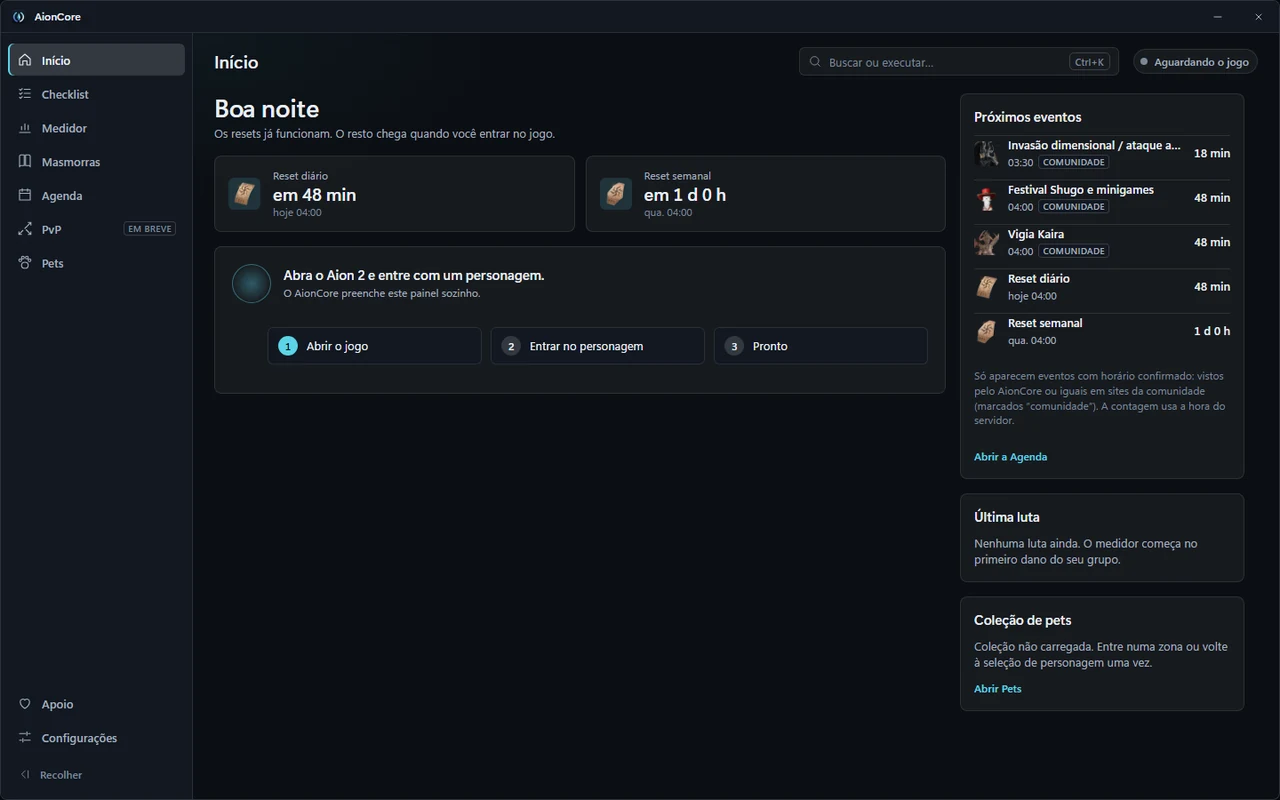
A window with a side menu leads to Home, Checklist, Meter, Dungeons, Schedule and Pets. It opens from the bar’s Quick settings menu or from the Windows tray.

  • Home gathers the countdown to the daily and weekly reset, what not to miss before each one, your characters, upcoming events and the last fight.
  • Ctrl+K opens a search to jump straight to a screen or a command.
  • A status badge in the corner shows whether AionCore can see the game: waiting, at character selection or in the game.
  • With the game closed, Home explains in three steps what to do and fills itself in when you log in to a character.

What Home shows about your characters comes from the same reading used by the Checklist and the Pets tab, and that reading is still being validated.

The AionCore main window on Home with no character: the side menu with Home, Checklist, Meter, Dungeons, Schedule and Pets, the Ctrl+K search, the daily and weekly reset countdowns, the three steps to get started and the list of upcoming events.
App screen in Portuguese · sample data

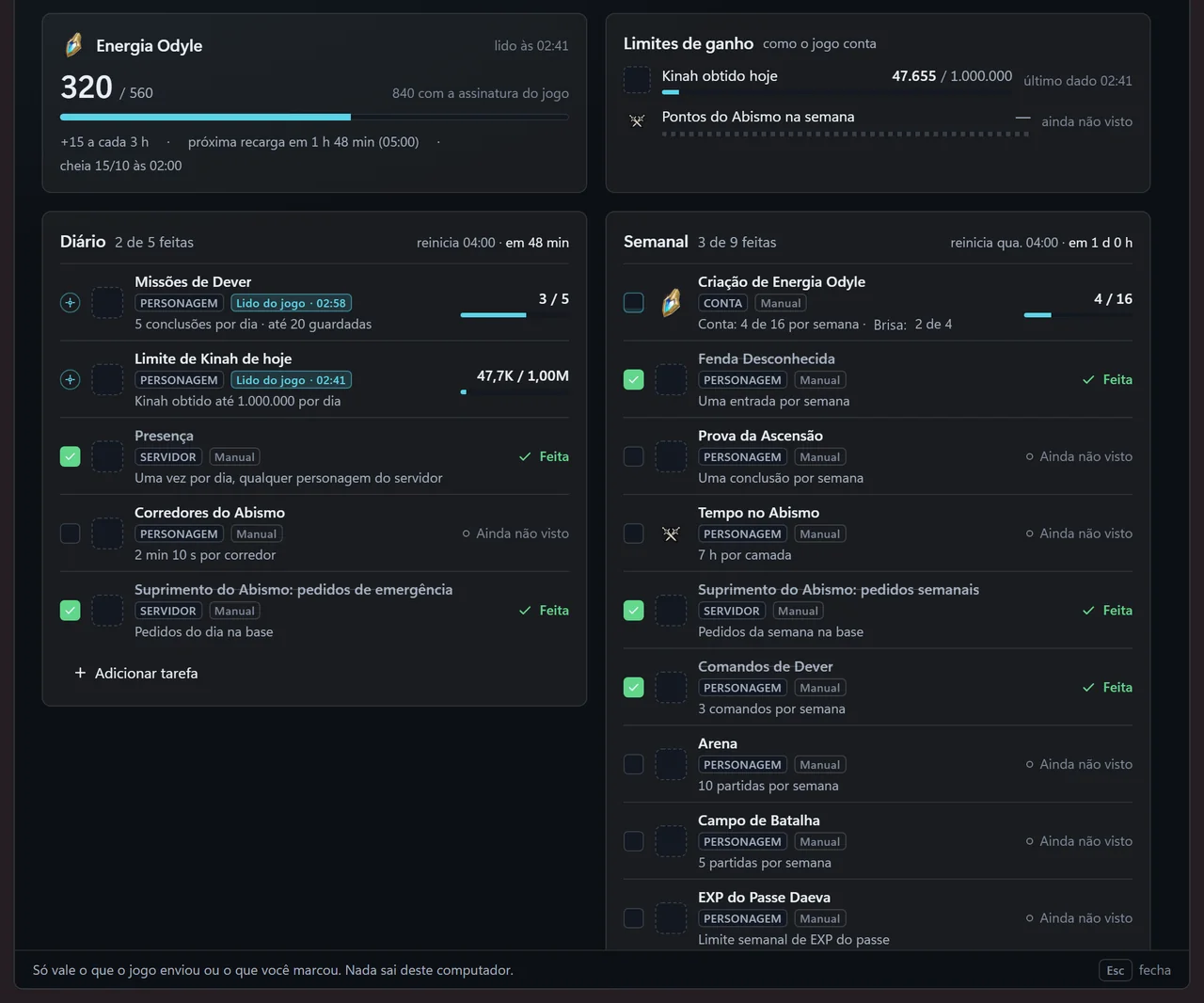
Automatic checklistBeing validated

What is left to do today and this week, character by character.

A page and a small window over the game show each character’s daily and weekly tasks, with the countdown to the next reset. Some tasks are read from the game; you tick the others by hand.

  • Read from the game: Duty Missions, the day’s Kinah limit, the week’s Abyss Points and Odyle energy. Each one shows the time of the reading.
  • Manual: Attendance, Abyss Supply, Arena, Battleground, Daeva Pass and others. AionCore does not tick on its own what it does not read.
  • Each character has its own numbers and ticks, stored only on this PC. You can hide tasks and add your own.
  • Daily and weekly resets follow server time, with the countdown on screen. The weekly rollover is still being checked with a live recording.
  • A slim version floats over the game and opens the full page. It comes switched off: you turn it on in Settings › Overlays or from the bar.
The AionCore Checklist, with the Odyle energy and Gain limits cards and the Daily and Weekly lists, each task tagged Read from the game or Manual.
App screen in Portuguese · sample data

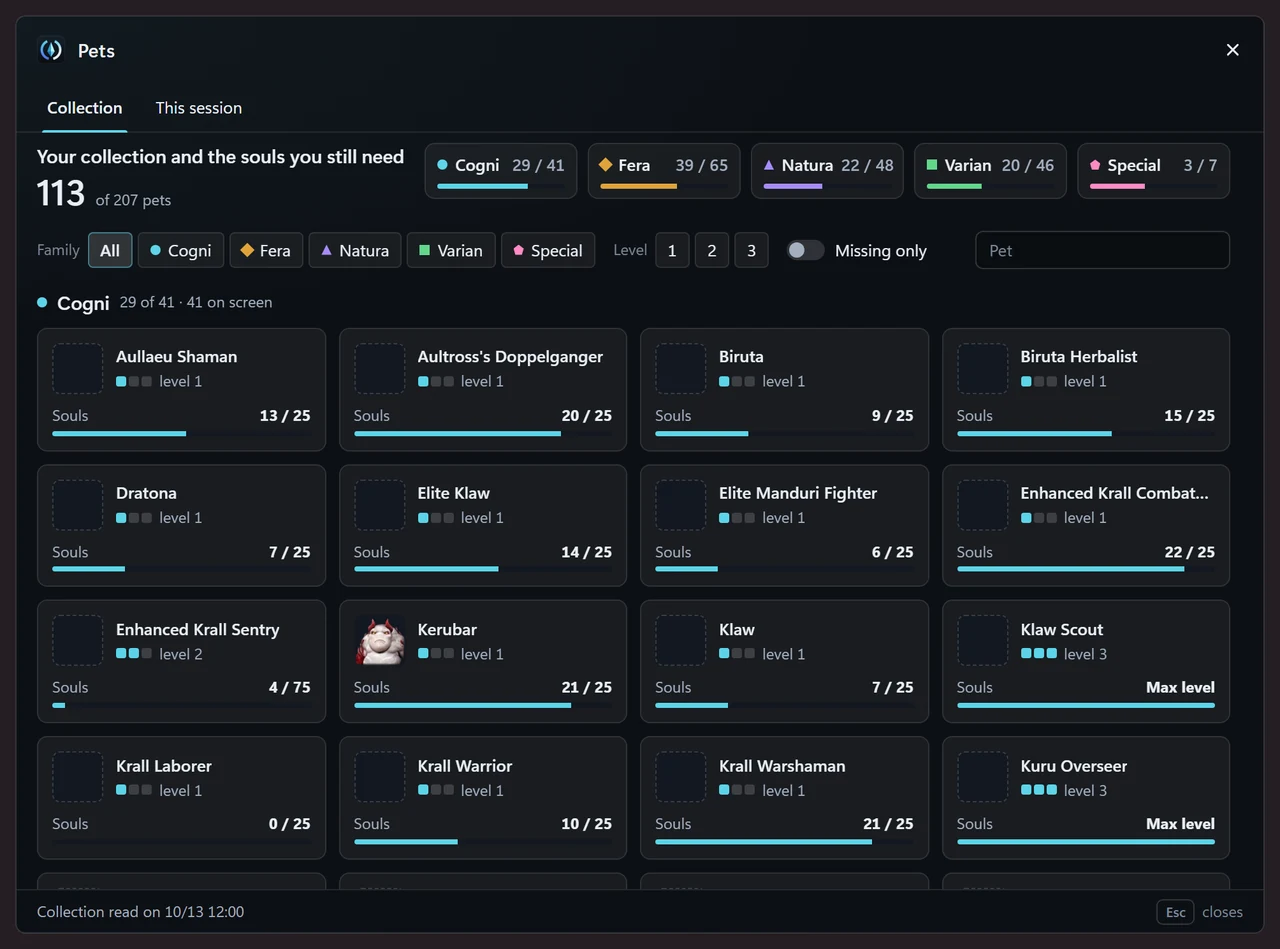
Pets tabBeing validated

Your pet collection and the souls you still need.

AionCore reads the character’s pet list from the game and shows, by family, how many you already have, each one’s level and how many souls are left for the next. This depends on pet reading, which you can switch off in Settings.

  • Collection: the five families (Cogni, Fera, Natura, Varian and Special), with a level filter, search by name and the option to see only the ones you do not have.
  • This session: the souls you have collected since you opened AionCore.
  • The collection is read from the game when you enter a zone or go back to character selection. Until then, the tab says it has not read it yet.
  • When the game does not give the exact number, the soul counter carries a tilde (~). Pet names are in English for now and several still have no icon.
The AionCore Pets tab: the collection total and each family’s (Cogni, Fera, Natura, Varian and Special), the family and level filters and a card for each pet with its level and collected souls.
Real app screen · sample data

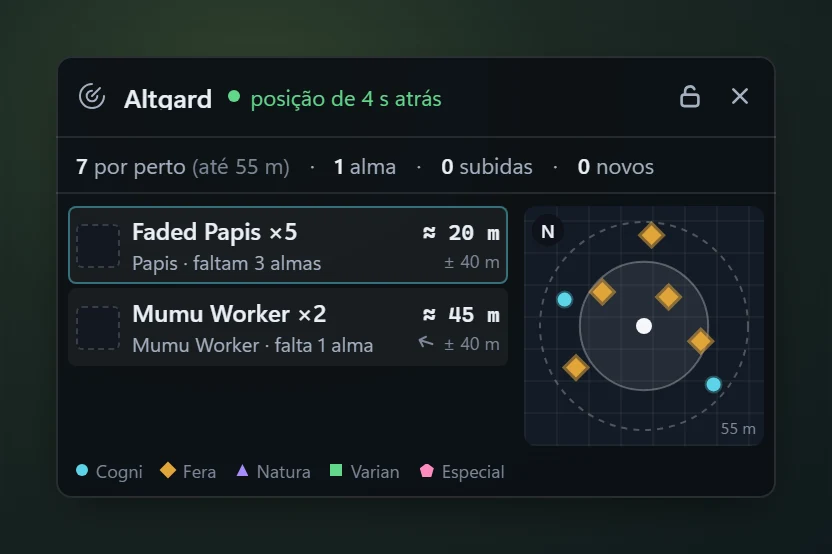
Pet radarBeing validated

Which nearby monsters drop the soul you are missing.

A small window over the game lists the monsters near you that drop souls for pets you have not completed, with the approximate distance and, when possible, the direction. It comes switched off: you turn it on from the Pets tab, from Settings or from the bar.

  • It shows only monsters of pets you still need, with how many souls each one is missing. You can switch to “not obtained” or “all”.
  • The distance comes with a margin of error (±) and depends on the game having reported your position recently. If you stand still, the radar says the position is old and removes the number.
  • It was designed for open fields. In a dungeon the list stays empty.
  • It needs pet reading switched on and the collection already read. Without it, the radar says so and lists nothing.

The radar is the newest part of the app. It has already run in the game, but the distances have not yet been checked on foot and mounted.

The pet radar over the game: the map name, the age of the position, the counters and a list of monsters with the approximate distance and the missing souls, next to a minimap.
App screen in Portuguese · sample data

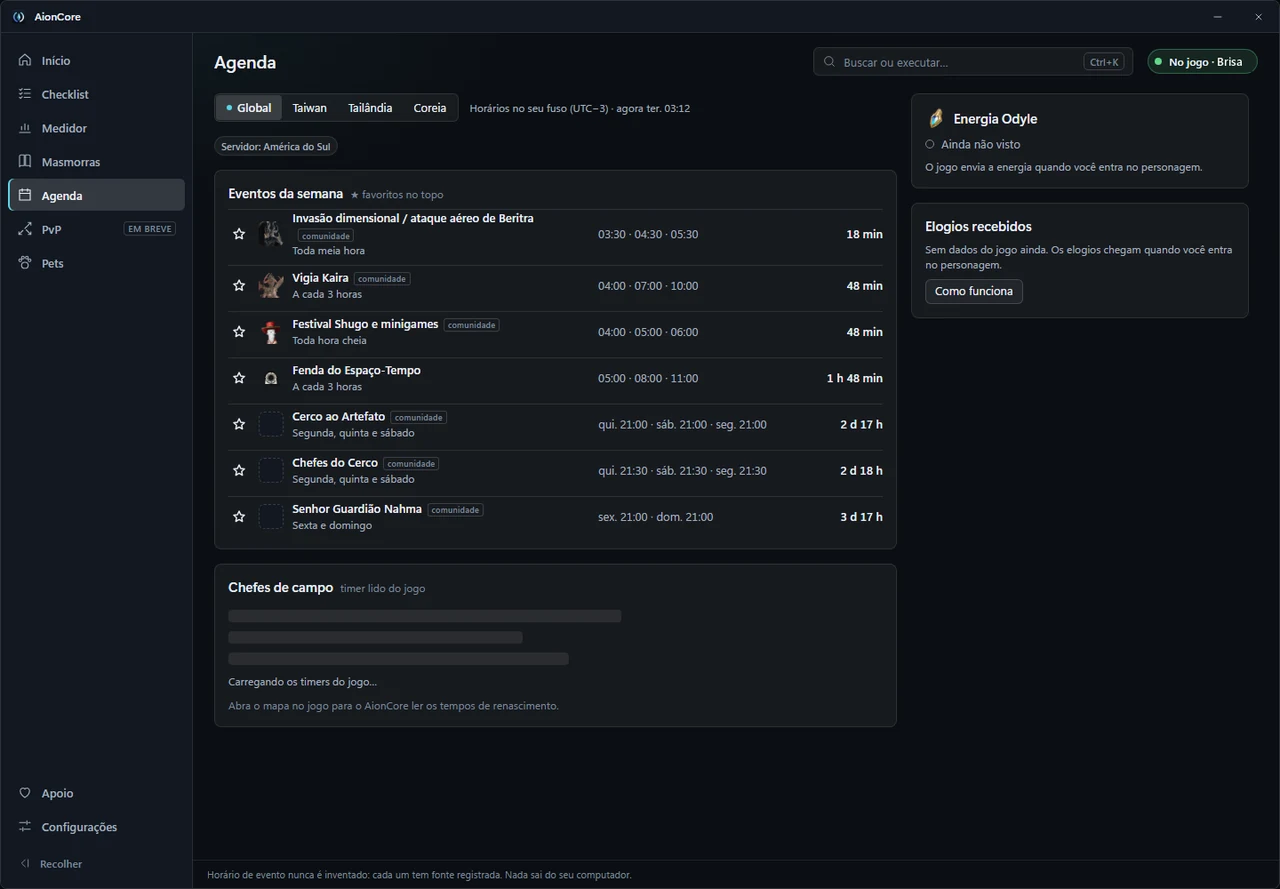
Schedule and TimersBeing validated

The week’s events and the field bosses, with a countdown.

The Schedule lists the week’s events with the countdown to the next start time, in your time zone, and lets you mark favorites. Timers is a small window that puts that countdown over the game, with your favorites at the top.

  • Every event time has a recorded source. The ones tagged “community” come from community sites, not from the game, and no time is made up.
  • There is one tab per server: Global, Taiwan, Thailand and Korea. Times show in your time zone.
  • The field bosses’ respawn time is read from the game and only arrives after you open the world map in the game.
  • You switch the Timers window on from the bar or from Settings, and the padlock lets clicks pass through to the game.

Reading the field bosses has not been checked live in the game yet; event times follow their tagged sources.

The AionCore Schedule: the Global, Taiwan, Thailand and Korea tabs, the This week’s events list with favorites at the top and the countdown for each event, and the Field bosses card still without times read from the game.
App screen in Portuguese · sample data

First run

Getting started in short steps, with the usage and data notice.

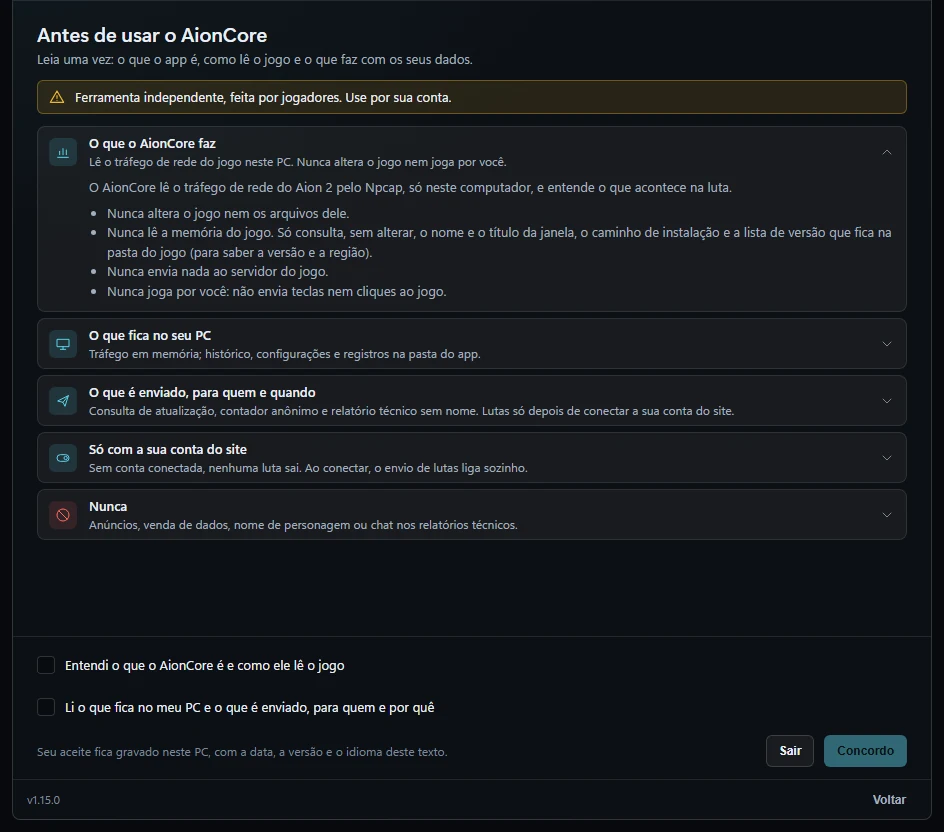
On the first run, AionCore guides you through short steps before showing the bar: welcome, the usage and data notice, the language and region, the optional Discord connection and a tour of the bar.

  • In the usage and data notice you tick two boxes to continue. Your acceptance is saved only on this PC, with the date, the version and the language of the text.
  • The meter is designed not to contact the AionCore site or check for new versions until you accept. The HUD’s updater and the download of the game’s icons do not go through that gate.
  • You can change the language at any step. In languages a person has not reviewed yet, the notice says the Portuguese version prevails.
  • Connecting with Discord is recommended but optional: without an account, the meter, the checklist and the guides work the same. To connect, you declare that you are 18 or older.
  • If you already used AionCore and are updating, you only see the notice and the tour.
The AionCore first run, at the Before you use AionCore step: the independent-tool banner, the five sections of the notice, the two acceptance boxes and the Quit and I agree buttons.
App screen in Portuguese · sample data

What is still to come

These screens are being planned or built. None of it works yet, and the order and dates may change.

  • PvP target and arena Coming soon

    Coming soon: the PvP target and the arena will get basic screens.

  • Detailed threat Coming soon

    Coming soon: a threat window will show more detail during the fight.

  • Map Coming soon

    Coming soon: a map will be available over the game.

  • Elyos look Coming soon

    Coming soon: the app will get a look with the Elyos atmosphere, besides the current one.

Everything that has been published for free stays free.

Supporters get new features first, and some are for supporters only. How to support

The history of each version is in What’s new. What's new

Download for Windows

The Terms of use changed on Oct 15, 2026: on the ranking, presence, the character name and fight details now start on, each player's combat power shows next to the class, anyone who shows their name has a public profile, which also starts on, and the supporter badge now also shows on the profile, with the month and year the person started supporting. The profile now also shows the game data that appears in the inspection (equipment, titles, legion, Arcana, Daevanion and the count of each type of praise) and, if you turn it on in the meter, your build. In My account you can hide your name, the badge or the game data, turn off the details or the profile, or leave the ranking; without an account, use the form on /ranking. All for free. The Support terms also gained section 4.11, on the party applicant card, which applies only to supporters. Read the Terms of use